Remove person from photo – Remove people from photos
Good to know: on phones and computers this tool currently uses lighter, less powerful AI models (LaMa and MI-GAN). Small object-removal models that run on a phone and give truly good results don't exist yet. For laptops and desktops we're testing bigger, more capable models that run right in your browser.
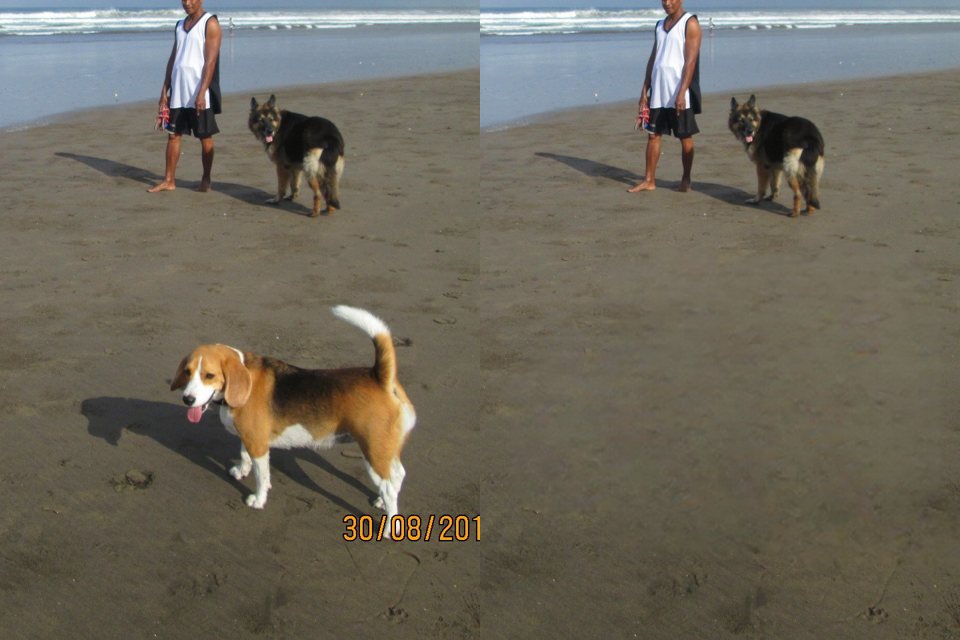
Paint over the person (with their shadow) and the AI fills the space with the beach, street or landscape behind them. Best for people who are not too large in the frame, in front of sky, water, sand, grass or plain walls.
or drop files or a folder here, or paste
How to use it
- Choose a photo, or several: they wait in the strip below.
- Paint over what should go, a little wider than the object, with its shadow. Press Remove.
- Repeat, undo or zoom in as needed, then save at full resolution.
Questions
Can it remove a person who covers half of the photo?
Not convincingly. The AI has to invent what was behind the person, and it does that well for smaller areas and calm backgrounds. For a big person in front of buildings or other people, the filled area will look smeared. Removing it in a few smaller strokes can help.
How does the object removal work?
Around what you painted, a square piece of the photo (about twice the size of the painting) is given to an AI model, LaMa, that has learned how backgrounds continue. It fills the painted area, its colours are matched to the surrounding pixels, and only the painted area is put back, with a soft edge. Everything else keeps its original pixels.
What does it do well, and where does it struggle?
It is at its best with smaller objects on calm backgrounds: sky, water, sand, grass, snow, plain walls, skin. Large objects in front of buildings, text-covered walls, crowds or detailed patterns are hard: the fill can look blurred or smeared there. Paint a little beyond the object and include its shadow and reflection, or the AI will rebuild them.
Do I lose resolution or quality?
No. The photo is saved at its full original resolution and only the painted area is replaced; the rest keeps its exact pixels. JPG photos are saved again as JPG at high quality (or choose PNG or WebP), and the camera details are kept.
Which AI models are used, and what is downloaded?
LaMa (Apache-2.0 licence), about 100 MB, for most removals, and MI-GAN (MIT), 14 MB, for small spots. Both are downloaded once, stay on your device, and run on the graphics chip (WebGPU) or, where that is not available, on the processor.
Are my photos uploaded to a server?
No. The AI model is downloaded to your browser and runs there; your photos never leave your device. That is also why the first use takes a moment longer: the model is fetched once and then kept for later visits.
Is it really free?
Yes, with no account, no watermark and no limit on the number of files. FotoJock is made by Foto Jocković, a photo shop in Belgrade.
All tools
Mini-apps
Free photo toys by Foto Jocković, each on its own page.
 VHS CameraVideo and photos with a real camcorder look
 Photo PuzzlePlay it, print it or laser-cut it
 On Your WallPreview a framed print on your wall
 Sticker MakerDie-cut stickers and sticker sheets
 Lithophane MakerA 3D-printable photo light box
 Star Map PosterThe night sky of your date and place
 City Map PosterThe streets of your place, as a print
 Film LabPick a film stock and shoot a 35 mm roll